


Print Screen

Print Screen (often abbreviated Print Scrn, Prnt Scrn, Prnt Scr, Prt Scrn, Prt Scn, Prt Scr, Prt Sc, Pr Sc, or PS) is a key present on most PC keyboards. It is typically situated in the same section as the break key and scroll lock key. The print screen may share the same key as system request.
Original use
[edit]Under command-line based operating systems such as MS-DOS, this key causes the contents of the current text mode screen memory buffer to be copied to the standard printer port, usually LPT1. In essence, whatever is currently on the screen when the key is pressed will be printed. Pressing the Ctrl key in combination with Prt Sc turns on and off the "printer echo" feature. When echo is in effect, any conventional text output to the screen will be copied ("echoed") to the printer. There is also a Unicode character for print screen, U+2399 ⎙ PRINT SCREEN SYMBOL.
Modern use
[edit]Newer-generation operating systems using a graphical interface tend to save a bitmap image of the current screen, or screenshot, to their clipboard or comparable storage area. Some shells allow modification of the exact behavior using modifier keys such as the control key.
In Microsoft Windows, pressing Prt Sc will capture the entire screen,[1] while pressing the Alt key in combination with Prt Sc will capture the currently selected window.[1] The captured image can then be pasted into an editing program such as a graphics program or even a word processor. Pressing Prt Sc with both the left Alt key and left ⇧ Shift pressed turns on a high contrast mode (this keyboard shortcut can be turned off by the user).[2] Since Windows 8, pressing the ⊞ Win key in combination with Prt Sc (and optionally in addition to the Alt key) will save the captured image to disk (the default pictures location).[3] This behavior is therefore backward compatible with users who learned Print Screen actions under operating systems such as MS-DOS. In Windows 10, the Prt Sc key can be configured to open the 'New' function of the Snip & Sketch tool. This allows the user to take a full screen, specific window, or defined area screenshot and copy it to clipboard. This behaviour can be enabled by going to Snip & Sketch, accessing Settings via the menu and enabling the 'Use the PrtScn button to open screen snipping'.
In KDE and GNOME, very similar shortcuts are available, which open a screenshot tool (Spectacle[4] or GNOME Screenshot respectively), giving options to save the screenshot, plus more options like manually picking a specific window, screen area, using a timeout, etc. Sending the image to many services (KDE), or even screen recording (GNOME), is built-in too.[5]
Macintosh does not use a print screen key; instead, key combinations are used that start with ⌘ Cmd+⇧ Shift. These key combinations are used to provide more functionality including the ability to select screen objects. ⌘ Cmd+⇧ Shift+3 captures the whole screen, while ⌘ Cmd+⇧ Shift+4 allows for part of the screen to be selected. The standard print screen functions described above save the image to the desktop. However, using any of the key sequences described above, but additionally pressing the Ctrl will modify the behavior to copy the image to the system clipboard instead.
Notable keyboards
[edit]On the IBM Model F keyboard, the key is labeled PrtSc and is located under ↵ Enter. On the IBM Model M, it is located next to F12 and is labeled Print Screen.
References
[edit]- ^ a b "Take a screen capture (print your screen) - Windows Help". Microsoft. Retrieved 25 April 2014.
- ^ "Turn on high contrast mode". Microsoft. Retrieved 2 February 2016.
- ^ "Take a screen capture (print your screen) - Windows Help". Microsoft. Retrieved 25 April 2014.
- ^ "Spectacle". KDE Applications. Retrieved 2024-09-07.
- ^ Screenshots and Screencasts – GNOME Help.
| Esc | F1 | F2 | F3 | F4 | F5 | F6 | F7 | F8 | F9 | F10 | F11 | F12 | PrtScn/ SysRq |
Scroll Lock |
Pause/ Break |
|||||||||
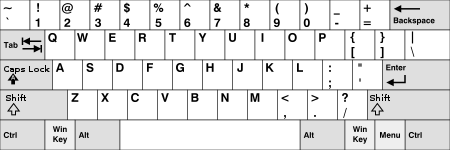 |
Insert | Home | PgUp | Num Lock |
∕ | ∗ | − | |||||||||||||||||
| Delete | End | PgDn | 7 | 8 | 9 | + | ||||||||||||||||||
| 4 | 5 | 6 | ||||||||||||||||||||||
| ↑ | 1 | 2 | 3 | Enter | ||||||||||||||||||||
| ← | ↓ | → | 0 Ins |
. Del | ||||||||||||||||||||